


Emoji Battery: DIY Status Bar
4.213.00 Reviews
App Specs
- Version
- 3.0
- Updated On
- License
- Free
- Downloads
- 100,000+
- Developer
- ImoDevel
- Categories
- Personalization
- Platform
- Android
Screenshots
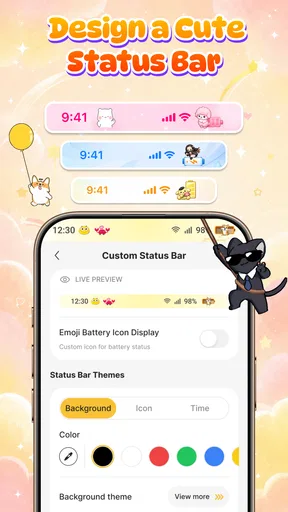
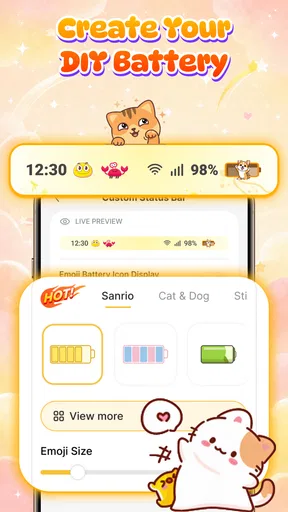
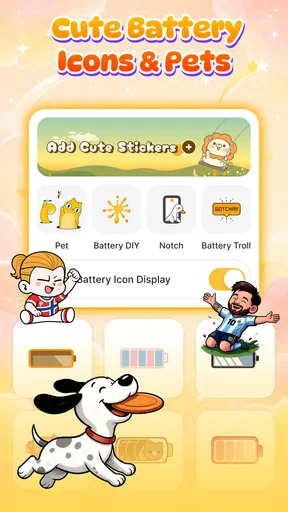
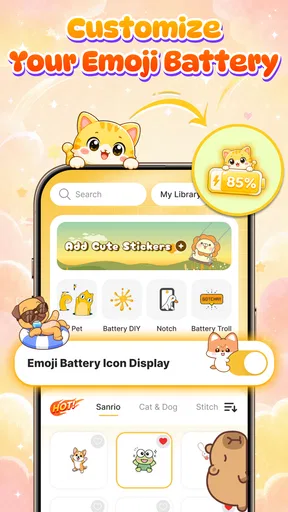

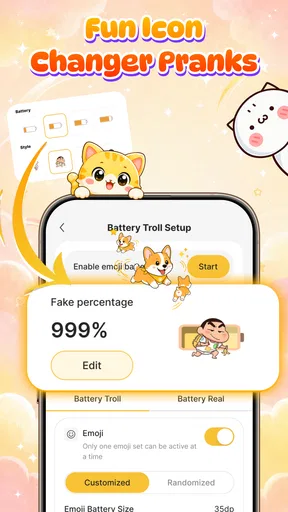
 Analysis by AppCompare
I can see the appeal of Emoji Battery: DIY Status Bar before even using it for a full day: it gives a familiar Android screen a bit of personality without asking me to replace my launcher or rebuild my home screen. The idea is simple—make the battery indicator playful and add little screen pets—but that simplicity also sets a high bar for lasting value. A novelty is fun on day one; it earns a place on my phone only if it stays readable, unobtrusive, and pleasant to see every time I check the time or battery.
This is a free personalization app from ImoDevel, with optional in-app purchases priced from $4.99 to $11.99 per item. It is rated for Everyone, and its 4.2 average from around 213 ratings suggests a generally positive response, though that alone cannot tell you whether its look will suit your phone. I would treat it as a small visual customization rather than a battery-management tool: its appeal is expression, not a deeper way to monitor or extend battery life.
From first-day novelty to a daily habit
I look at the move from first-day novelty to a daily habit as a test of whether a playful status bar remains useful once the surprise wears off. The key is not how many styles you try, but whether one choice stays easy to read during quick, distracted glances. That makes the next question less about setup and more about what keeps the customization enjoyable over time.
Why the first few days feel fresh
The most immediate strength is the contrast with the standard status bar. Battery icons are usually tiny and easy to ignore; making one expressive gives the top edge of the screen a little character. The screen-pet idea adds another playful layer, especially for someone who likes small personal touches more than a full theme that changes every icon and wallpaper.
In my view, the best way to try it is to change one element at a time. Start with the battery treatment, then live with it through ordinary tasks before adding more visual activity. That makes it easier to tell whether the new look genuinely improves your phone or merely feels exciting because it is unfamiliar. If you change everything at once, it is harder to know which part you still enjoy after the initial burst of curiosity.
A realistic use case is a phone you check repeatedly during a busy day: the battery marker becomes a tiny visual cue, while a pet can make an otherwise plain screen feel more personal. This is most appealing if you enjoy noticing details on your device and do not mind a decorative element occupying attention. If your status bar is something you prefer to keep quiet and functional, the same playfulness may feel like clutter.
What the app is—and what it is not
Emoji Battery sits in the personalization space, not among tools I would choose to diagnose battery drain. A new icon can make charge level more fun to glance at, but it should not be mistaken for a more accurate reading or a battery-saving feature. I would keep a phone’s existing battery settings or a dedicated monitoring tool for practical checks, and use this app only if changing the appearance is the goal.
Worth Reading Before You Choose

Baby Panda World Brings Quick Play to Modern Phones, but Its Game Library Feels Busy

ESPN’s Live Game View Makes Following Close Games Easier

QuizzLand Review: A Good Fit for Short Trivia Breaks, Not Every Player

Basketball Stars: Multiplayer Is Fast, but Can It Recover When Matches Go Wrong?

WEBTOON Turns Phone Updates Into a Better Reading Routine

Link to Windows Runs on Shared Habits, Not Social Feeds
That distinction matters because the usual alternatives solve different problems. A system theme or wallpaper changes the broader look of a device; a launcher can reorganize the home screen; a battery utility focuses on information. This app’s narrower proposition is more charming than comprehensive. That focus is a plus if you want a small decorative change, but it is not the right choice if you expect a complete interface makeover or detailed battery controls.
The app has reached over 100,000 installs, and its current version is 3.0. Those figures offer context about its presence and iteration, but they do not replace a personal fit test. The practical question is whether the visual style feels comfortable on your own screen, at your usual brightness and with the apps you use most.
Making it work on a real phone
There is a useful trade-off with any customization that touches the status bar: visibility competes with decoration. A design that looks delightful in a preview can be harder to read against changing backgrounds or beside notification icons. I would favor a battery style that is recognizable at a glance over one that is merely the most elaborate. The battery symbol is a quick signal, so if you need to pause and interpret it, the customization is doing too much.
Try the look in more than one setting before deciding it is a keeper. Check it on a bright screen, in a dim room, and while notifications are present. The point is not to chase a perfect aesthetic; it is to see whether the playful treatment remains legible during the fast, half-attentive checks that make up normal phone use. That small test is more useful than repeatedly changing styles in a setup session.
I would also think about how the screen pet fits your habits. If you enjoy a little movement or decoration while using the phone, it can add warmth. If you often keep the display open while reading, working, or following instructions, visual activity may draw your eye away from what matters. In that situation, a static battery customization—or the untouched system display—may be the more comfortable daily choice.
The month-to-month test
After the novelty fades, recurring value comes down to whether the customization still makes you smile without demanding attention. I would not expect a battery emoji to transform a phone routine. Its value is smaller and more personal: a subtle bit of identity each time you glance at the top of the display. People who regularly personalize wallpapers, icons, and widgets are more likely to keep enjoying that kind of detail than people who set up a phone once and then forget about its appearance.
A good long-term approach is to settle on one readable style and stop tweaking it for a while. Constantly searching for a better look can turn a light customization into another maintenance task. If the chosen appearance works across your normal use, leave it alone and judge it after a week of ordinary checks. If you keep noticing the decoration more than the information, simplify it rather than trying to force yourself to like it.
This is also where the app’s modest scope works in its favor. It does not ask you to redesign every screen just to enjoy one personal touch. But that limited scope means its continuing appeal depends heavily on taste. Someone who wants a broader theme system may get more durable satisfaction from a launcher or a coordinated icon-and-wallpaper setup; someone who simply wants a more cheerful battery indicator may find this more direct.
Keeping the setup from becoming a chore
Customization is most enjoyable when it is easy to live with, so I would keep the setup restrained and avoid making the status bar compete with alerts or other information. Any time a visual change makes you hesitate before reading battery level, reverse that choice. A useful rule is to ask whether the display is still understandable in a quick glance, not whether it looks impressive when you stare at it.
Since Android devices can differ in how their interfaces appear, the result may not feel identical on every phone. The minimum operating-system requirement is Android 7.0, so owners of older software should check compatibility before planning around it. Even on a compatible device, I would judge the actual on-screen result rather than assume every manufacturer’s status bar will present a customization in exactly the same way.
There is also a sensible spending decision. The app is free to try, while individual in-app purchases range from $4.99 to $11.99. I would first establish that I enjoy the basic concept in everyday use, then consider paying only if a particular paid item offers something I specifically want. Decorative extras are easiest to regret when bought during the first-day excitement, before you know whether the core look survives a normal week.
Where fatigue can set in
The main risk is visual fatigue. An emoji or animated-looking pet can feel charming at first and distracting later, especially when the status bar already carries several notifications. The more playful the screen becomes, the more likely it is to compete with the practical information that status bars are meant to show. That does not make the idea flawed; it simply means the app suits people who actively want personality in a place many users prefer to keep minimal.
Another limitation is expectation. The store description may lead some people to think first about battery information, but the real attraction is the custom appearance. If your concern is that a phone drains too quickly, this is not the kind of solution I would reach for. If you want a clearer view of battery health or usage, use the phone’s built-in settings or a tool designed for that purpose instead.
The rating is useful as a broad signal, but I would not let it decide the purchase for me. With around 13 written reviews, there is less detail to draw on than the rating alone might suggest. Because this is so dependent on personal taste and device presentation, a short hands-on trial is a better guide than assuming a positive average guarantees a lasting fit.
Who should keep it installed
I would recommend Emoji Battery to someone who enjoys small, playful Android customizations and wants a status bar that feels less generic. It is particularly suitable for people who already enjoy adjusting their phone’s appearance and are happy to trade a little visual restraint for personality. The Everyone age rating also makes its intended tone clear: this is light, casual personalization rather than a tool aimed at a specialized professional task.
I would skip it if you prize a clean interface, rely on every status-bar detail being instantly obvious, or are looking for practical battery advice. I would also choose a different kind of customization if my goal were to remake the whole home screen. In those cases, the app’s narrow focus is not a weakness to work around; it is simply a mismatch with what I want from my phone.
My lasting verdict is that it earns space only when the decoration stays delightful after the novelty wears off. I like the focused idea and the low-commitment way it lets you add character, but I would keep the setup simple, check legibility in real use, and avoid buying extras until the basic look has proved itself. If a playful battery display makes routine glances more enjoyable, it is a worthwhile personal touch. If you stop noticing it—or start noticing it for the wrong reasons—returning to a quieter status bar is the better choice.
Pros
- Adds a playful emoji to the battery indicator for a more personal status bar.
- Offers a simple way to customize the look of your phone’s battery display.
- Useful for spotting battery level at a glance without opening settings.
- Lightweight customization that does not require changing your device’s theme.
- A fun option for users who enjoy emoji-style personalization.
Cons
- Some emoji designs may be difficult to read at small sizes.
- Compatibility can vary across Android versions and device interfaces.
- Battery indicators may update with a slight delay
- depending on the device.
- Customization options may feel limited if you want detailed status bar controls.
- The app may need permission to display over other apps or access usage details.
FAQs for Emoji Battery: DIY Status Bar
What is Emoji Battery: DIY Status Bar?
Emoji Battery: DIY Status Bar is a personalization app for people who want to give their phone’s battery display a more playful look. It offers emoji-themed battery visuals and status-bar customization, with the available options depending on the app version and your device. Before installing, check the screenshots and description on the store page to confirm that its style and features match what you want.
How do I customize the battery display?
After opening the app, explore its themes or design settings to see which emoji styles and battery appearances are available. Choose a design, apply it, and follow any prompts needed to display the result. Android versions and manufacturers handle status bars differently, so a design may appear as an overlay, widget, or other supported display rather than replacing the system battery icon in every situation.
Does Emoji Battery: DIY Status Bar work on both Android and iOS?
Compatibility depends on the version offered for your device and the customization permissions permitted by its operating system. Android generally allows more options for changing or overlaying interface elements, while iOS restricts modifications to system status-bar icons. Check the official store listing for your specific phone before downloading, and do not assume that features shown for one platform are available on the other.
Does the app require special permissions, and is it safe to use?
The permissions requested can vary by app version and by how a particular battery display is implemented. Review each permission prompt and the app’s privacy information before granting access; a cosmetic battery feature should not need unrelated access without a clear explanation. Download only from an official app store, check the developer and recent reviews, and avoid granting permissions you do not understand or need.
Is Emoji Battery: DIY Status Bar free, and will it affect battery life?
Check the current store listing for the latest pricing details, since availability, advertising, and optional in-app purchases may vary by region or version. Any feature that keeps an overlay, widget, or background service active could use some battery or system resources, although the impact depends on your device and settings. If you notice extra drain, disable the display or background activity and compare usage.


